Reconciling Shopee Sales and Preparing Supporting Documents
How to reconcile Shopee sales using Order and Income in both directions, with formulas, example differences, receivables, expenses, and checks from the Wallet to the bank.
This guide helps you check whether sales, expenses, money entering your Shopee Wallet, and money transferred to your bank are fully connected. It suits shop owners and bookkeepers who want to summarise monthly data and prepare supporting documents.
What will you get from reading this?
You will get a sales table with one row per order, items that need further checking, a summary of outstanding receivables, and a net amount received that can be traced back to the Wallet and the bank.
Order of checks: prepare the reports → total the orders → calculate Income → compare in both directions → separate expenses → check the Wallet → summarise and keep evidence
What files do you need to prepare?
- Order.completed: the list of completed orders, used to check sales per order
- Income — Transferred: revenue details and deductions for orders already transferred to the Wallet
- my_balance_transaction_report.shopee: the report of money in, money out and the Wallet balance
Define the month to reconcile clearly, and check which date each report uses to select the period, such as order date, completion date or transfer date, because reports set to the same month may contain different sets of orders.
1. ดาวน์โหลดรายงานจาก Shopee
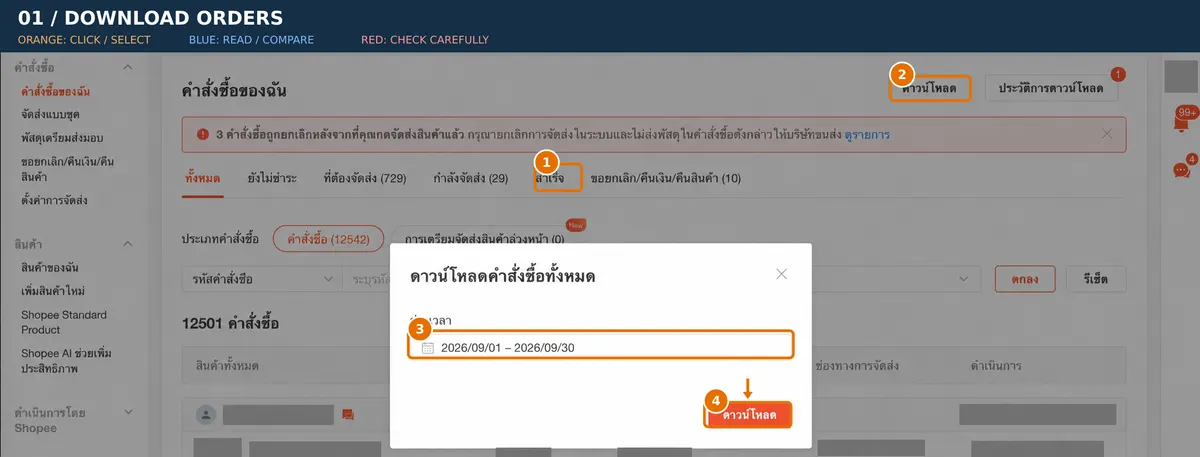
Order list
Go to My Orders → Completed → Download → choose period
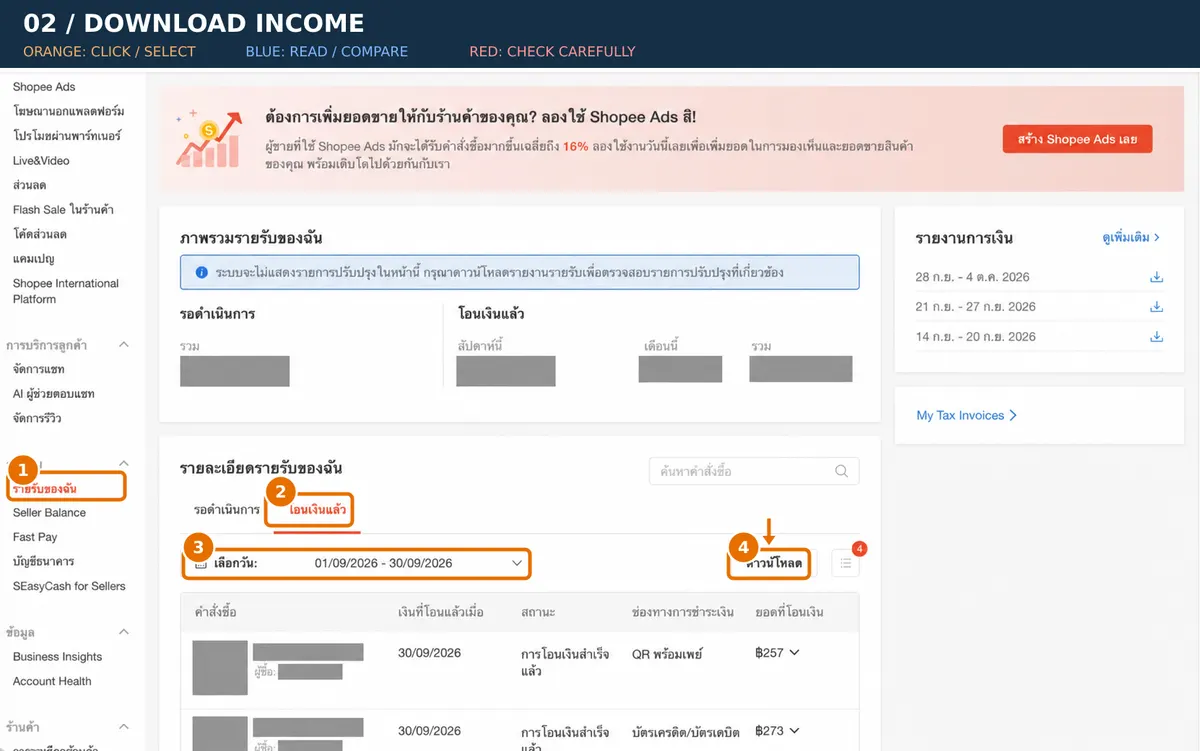
Report of income already transferred
Go to My Income → Released → choose period → Download
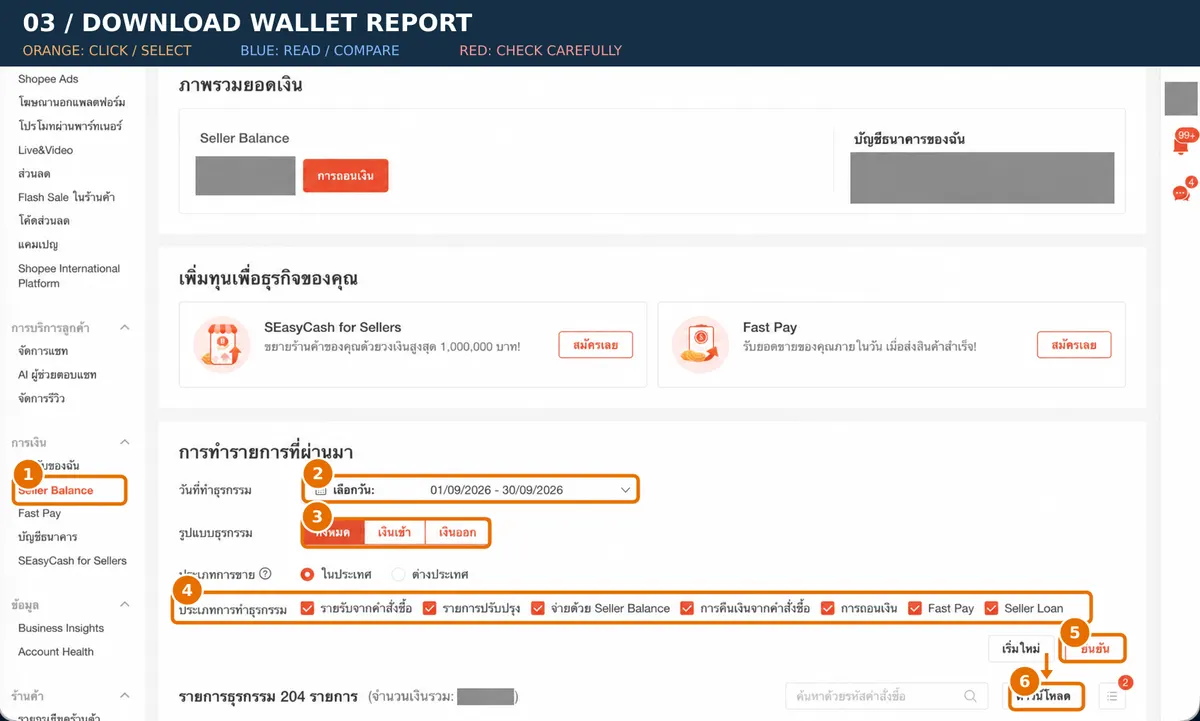
Go to Seller Balance → choose the period and all transaction types → Confirm → Download
2. สรุปยอดขายจากไฟล์คำสั่งซื้อ
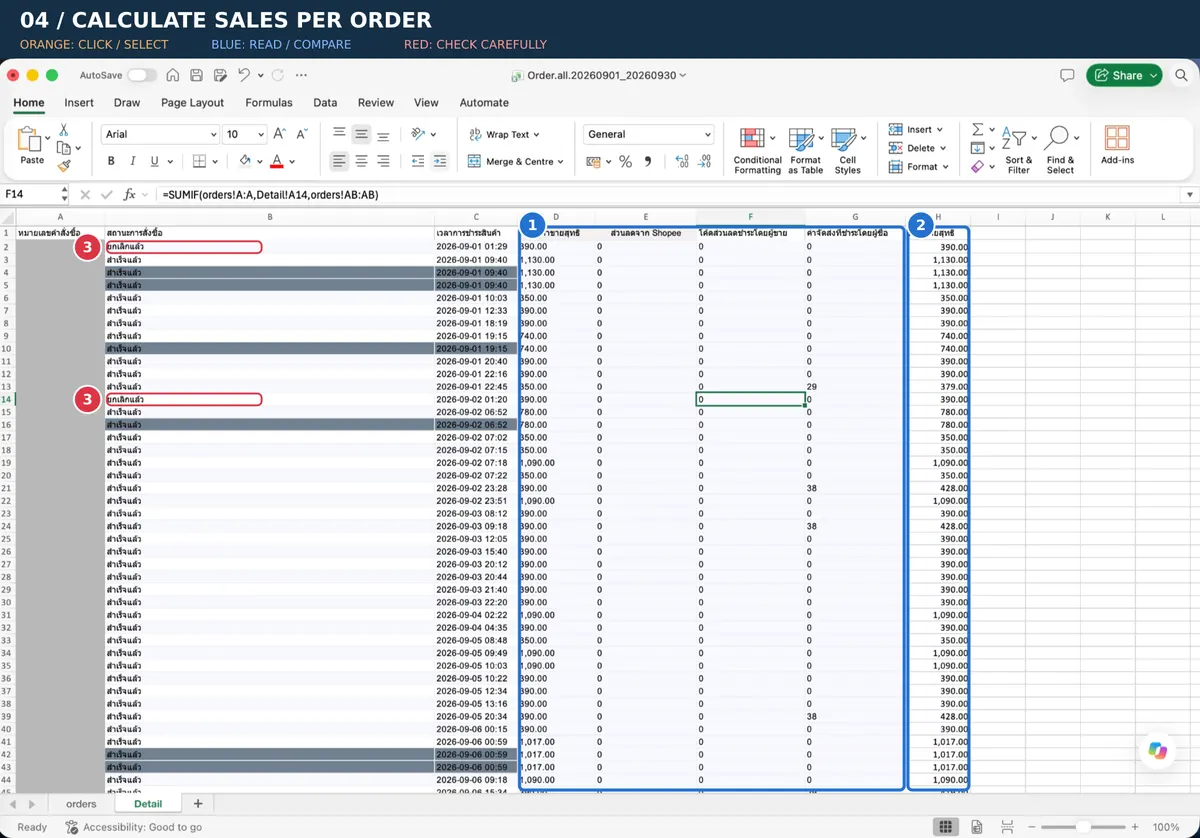
The starting formula for comparing per-order amounts in this example is:
Net selling price + Shopee discount compensated to the shop − seller-funded voucher code + shipping fee paid by the buyer
Check the meaning of “net selling price” before using the formula. If the seller discount has already been deducted, do not deduct the same discount again. For platform discounts, include only the amount the shop was actually compensated.
How to total orders with several rows?
- Copy the order numbers to a summary sheet, then use Remove Duplicates or UNIQUE to build a list of unique orders. Keep the original data with every row.
- Use SUMIF/SUMIFS to total only the amounts that are at item level and must be added across several rows.
- For order-level amounts such as discounts or shipping, check whether the report shows them once or repeats them on every row, then pull the amount only once.
- Use XLOOKUP/VLOOKUP only when you have confirmed that the row found holds the complete amount. If the first row is empty or the order has several adjustment items, combine the data correctly first.
Example formulas: create the order numbers separately from totalling
Suppose the sheet Order_Raw has A = order number and B = item amount per row, and the sheet Order_Summary has A = unique order number. These letters are a hypothetical structure; change them to match your actual file.
First step — create the list of unique orders: put the formula in A2 of the summary sheet
plain text=UNIQUE(FILTER(Order_Raw!A2:A10000,Order_Raw!A2:A10000<>""))Next step — total the item-level amounts: put the formula in B2 and copy it down the list
plain text=SUMIF(Order_Raw!$A$2:$A$10000,A2,Order_Raw!$B$2:$B$10000)For example, if one order has items of THB 600 and THB 400, it must total THB 1,000. If a shop voucher of THB 100 is repeated on two rows, deduct it only once, leaving THB 900, not THB 800.
Pull order-level amounts with XLOOKUP only when you have confirmed that the row found holds the complete amount. If the amount is on another row, arrange the data first. Never use a first-row lookup in place of checking the data.
3. สรุปรายได้และยอดรับสุทธิจากไฟล์ Income
Keep these two amounts separate:
- Revenue for comparing orders: the item amount after discounts and refunds, including related compensation or shipping according to the report details
- Net amount transferred to the Wallet: the amount after fees, shipping and related adjustments have been deducted
The starting formula from the items in this article is:
Regular selling price − seller discount − customer refund + Shopee discount compensated to the shop − seller voucher code − seller-funded Coins Cashback + shipping fee paid by the buyer
Check the signs of the numbers too: if the report already shows deductions as negative values, add the values as they are. Do not subtract a negative value again, which would turn it positive.
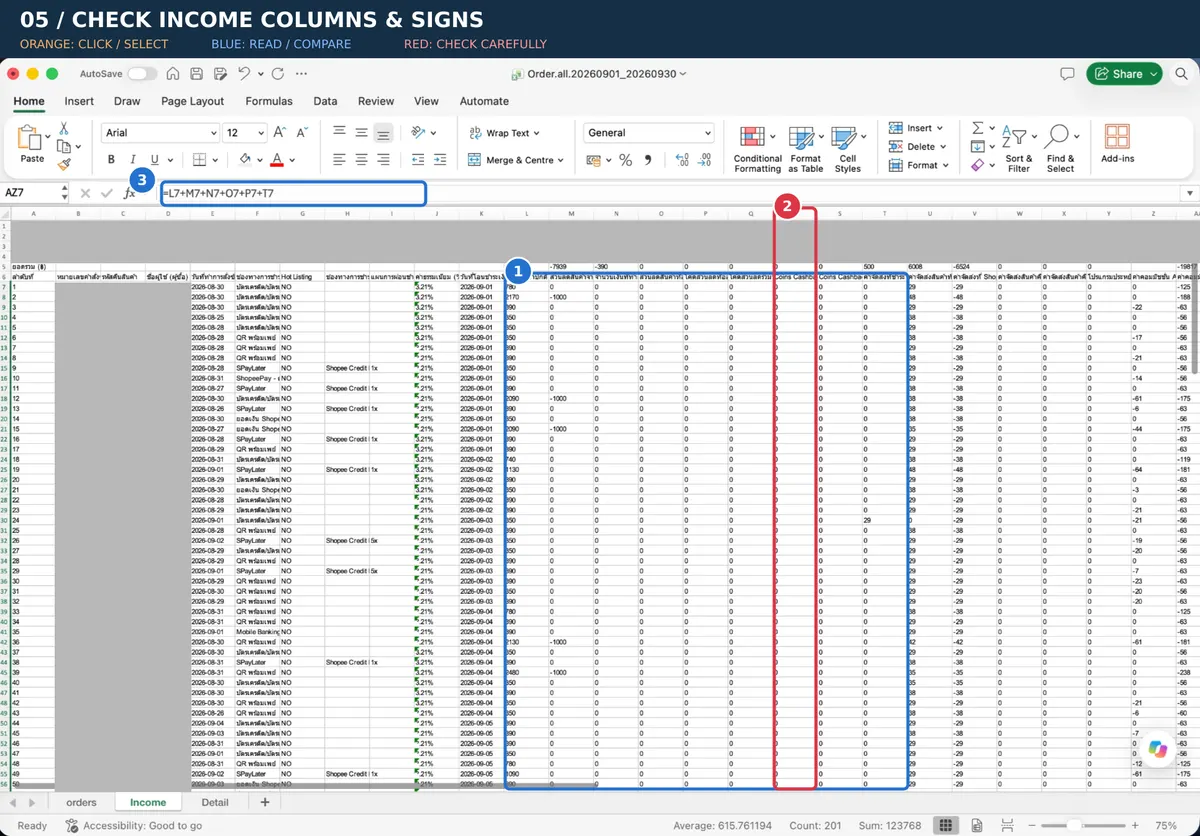
Example of signs and net amount received
Suppose the item price is THB 1,000, the shop discount is THB 100, there is no refund, compensation or shipping, and a hypothetical fee of THB 50 is deducted:
- Revenue for comparing orders = 1,000 − 100 = THB 900
- Net amount received into the Wallet = 900 − 50 = THB 850
If the file shows the discount as −100, calculate 1,000 + (−100) = 900; but if it shows 100, calculate 1,000 − 100. Do not use the same subtraction formula without checking the sign.
The THB 50 fee is a hypothetical figure, not an actual Shopee rate. And even when Order and Income revenue agree at THB 900, that does not mean the Wallet must receive THB 900.
4. เทียบยอดรายออเดอร์และอธิบายผลต่าง
Match by order number after summarising each file to the same level of data. If Income has several rows per order, total the related items before comparing.
Difference (Diff) = amount from the orders file − revenue calculated from Income
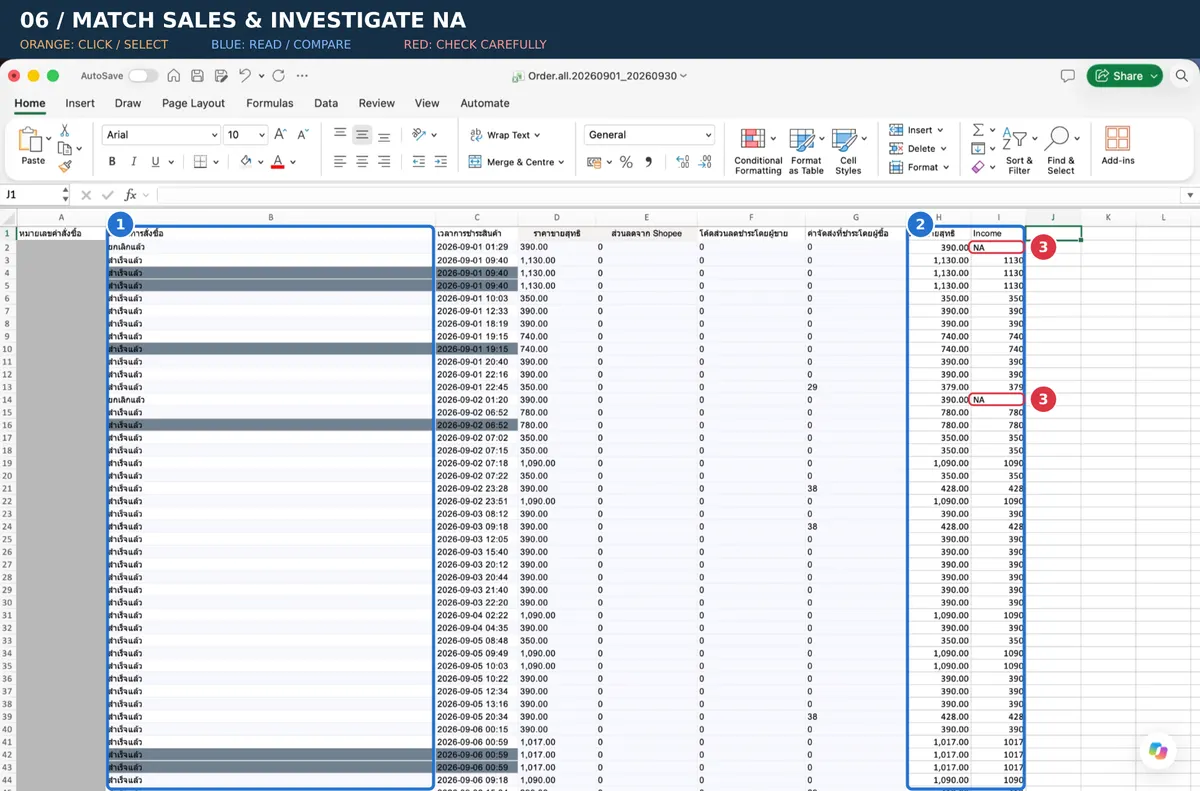
Zero difference
The amounts on both sides agree for that order. Then check the net amount received and the date the money entered the Wallet again to confirm receipt.
There is a difference
Check discounts, compensation, Coins Cashback, customer refunds, shipping and adjustments, as well as double counting or using different periods. Record the cause of the difference for every order that is still open.
Shows N/A or NA
This means the formula could not find the order number; it does not confirm that every item is a receivable. Check:
- Is it a cancelled or refunded order?
- Does the order number contain spaces or a different data format?
- Was the full date range selected, and might the money have arrived in a different month?
- Does the shop have the right to receive money for that sale but has not actually received it yet?
If Income has orders that are not in this month's sales list, look back at previous months. They may be receivables brought forward that were paid this month, or adjustments that need to be explained separately.
4.1 Check from Order → Income
Start from the unique orders of the sales month, then look up whether there is revenue in Income, to find matching amounts, differences, and amounts with no transfer found.
Suppose Income_Summary has A = unique order number and B = revenue for comparison, and Order_Summary has B = Order amount. Pull the Income amount in C2:
plain text=XLOOKUP(A2,Income_Summary!$A$2:$A$10000,Income_Summary!$B$2:$B$10000,"ไม่พบคู่",0)Calculate Diff in D2 only when a match is found:
plain text=IF(ISNUMBER(C2),B2-C2,"รอตรวจ")Do not replace an unmatched amount with zero without keeping the status, because you could then no longer tell orders that are truly zero from orders whose data is missing.
4.2 Check back from Income → Order
Start from the unique order numbers in Income, then look them up back in the current month's Order using the same XLOOKUP, swapping the source and destination sheets.
For items not found, check Order and the previous month's receivables table, including refund or adjustment history. Keep the month sold, month paid, cause and evidence. A one-way check will not reveal items that exist only in Income.
4.3 Example with 5 orders: matched, different and unmatched
All figures are hypothetical, in THB. A “—” means the order was not found in the period's report; it is not a zero amount.
| Order | This month's Order | This month's Income revenue | Diff: Order − Income | Result / what to do |
|---|---|---|---|---|
| DEMO-01 | 900 | 900 | 0 | Matched; fee 50 → net received 850, then check the Wallet |
| DEMO-02 | 600 | 500 | +100 | Different; in this example a refund of 100 was found, so check the date and the sales adjustment document |
| DEMO-03 | 400 | — | Pending review | Not matched; in this example sale and right to payment are confirmed → closing receivable 400 |
| DEMO-04 | — | 300 | Pending review | Check back; in this example it agrees with the 300 receivable brought forward from the previous month |
| DEMO-05 | 200 | 230 | −30 | Different; in this example extra compensation of 30 was found, so check and classify the item |
Positive Diff means Order is greater than Income; negative Diff means Income is greater than Order. The sign shows the direction of the difference, not which side is right, so check the cause. Differences that offset each other to a zero total still need checking order by order.
This table contains both adjusted and pending items, so the total should not yet be used to say the period is closed. The summary example in section 6.1 below is a different data set, so do not compare totals from this table with it directly.
5. สรุปค่าใช้จ่ายและเก็บเอกสารประกอบ
Separate expenses into at least:
- Shipping: check shipping borne by the shop, return shipping, subsidies and shipping adjustments according to the actual details
- Commission and service fees: commission, service fees and payment transaction fees
- Other expenses: for example advertising, which may be paid through the Wallet, a credit card or another top-up
Download the platform's receipts and tax invoices and compare them with the expense details. Check the document period, VAT and withholding tax items separately. If the document date differs from the date the item arose, prepare a table explaining the difference.
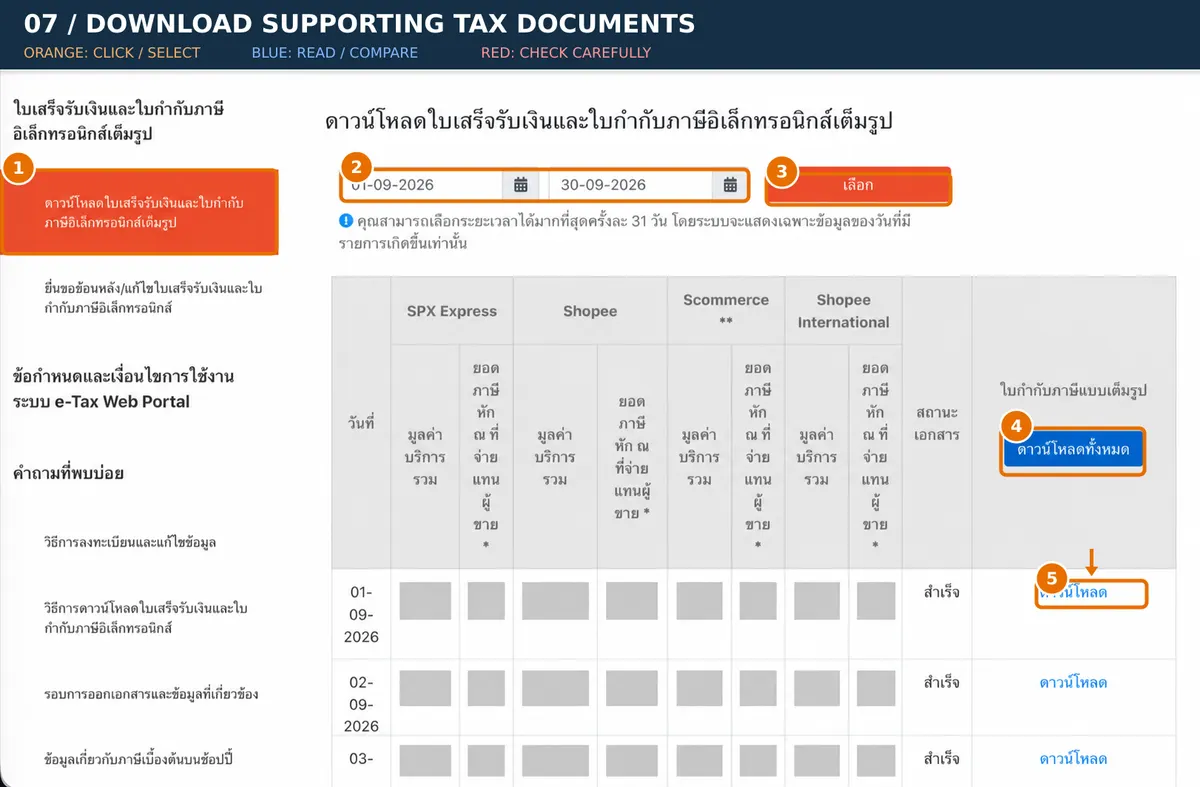
Tools to help summarise the data
See the Google Apps Script tool for Shopee on the page below to help reduce the summarising work. Before using it, check that the sheet names, column headers and formulas match your shop's files.
6. กระทบยอด Wallet และเงินเข้าธนาคาร
Group every item in the Wallet report as money in, money out or an adjustment, then calculate:
Brought-forward balance + total money in − total money out = carried-forward balance
- Brought-forward balance: the balance before the first transaction of the period; it should agree with the previous period's carried-forward balance
- Money in: net amounts received from orders, top-ups, or upward adjustments
- Money out: withdrawals to the bank, advertising, refunds, or downward adjustments
- Carried-forward balance: the balance after the last transaction of the period
If the report shows the balance after the first transaction, calculate brought-forward balance = balance after the first transaction − first money in + first money out, and check the order of dates and times is correct.
Compare the net amount received from Income with the money entering the Wallet from orders, separating other types of money in first. Then match the withdrawals with the bank statement. If a withdrawal is made at month end but reaches the bank next month, show it as an item in transit.
Hypothetical example: brought forward THB 1,000 + money in THB 10,000 − withdrawn to bank THB 8,000 − advertising THB 500 = carried forward THB 2,500
6.1 Monthly reconciliation summary table
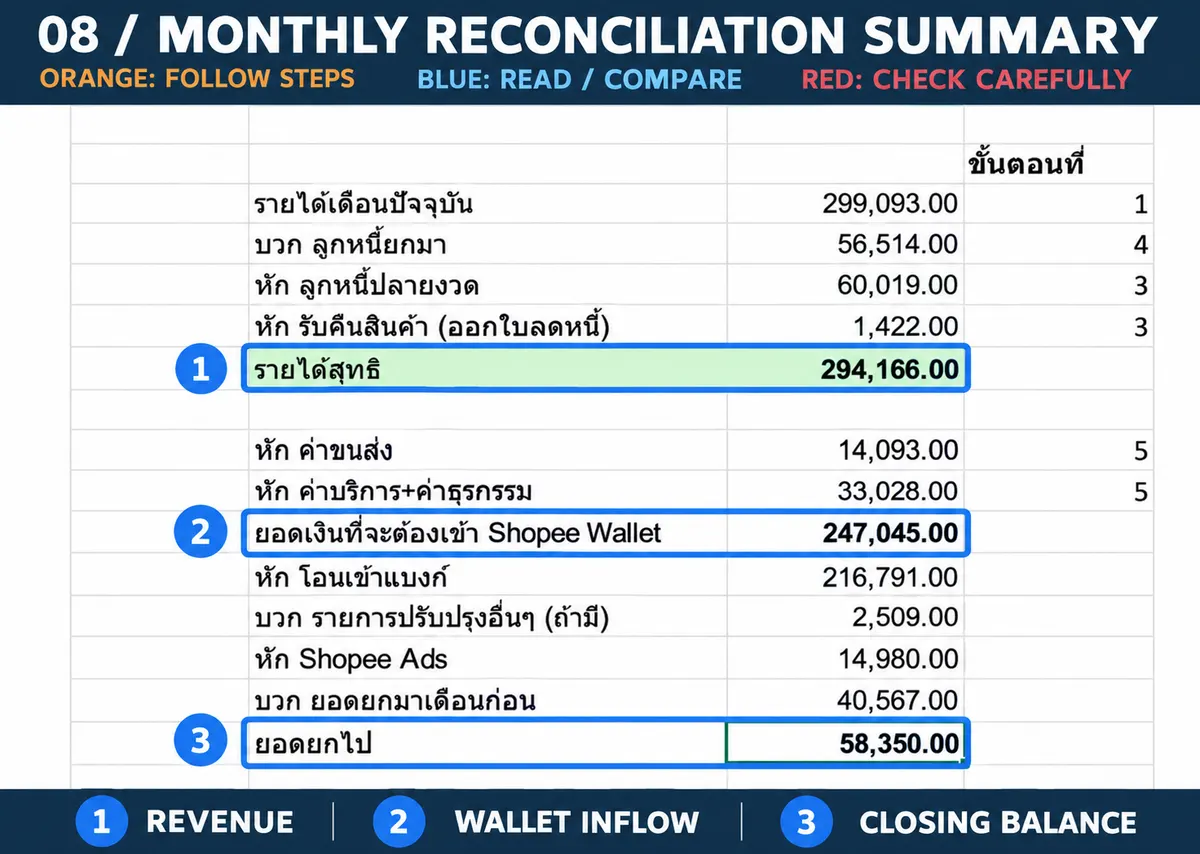
① Check the revenue basis of orders paid in the period
Current-month revenue 299,093 + receivables brought forward 56,514 − closing receivables 60,019 − returned goods 1,422 = THB 294,166
Revenue for comparing with Income after adjusting for receivables and returns = THB 294,166. The original screenshot called this “net revenue”, but this amount has not had fees deducted and is not directly the current-month revenue. This figure is an example from the supporting table, not your shop's amount.
This formula works when 56,514 is the total opening receivable balance and 60,019 is the total closing receivable balance on the same basis, including old receivables still outstanding. If 56,514 is only old orders collected this month, do not use it in place of the total opening receivable balance; prepare an order-level list and adjust the reconciliation bridge before concluding.
② Check the net amount received into the Shopee Wallet
294,166 − shipping 14,093 − service fees and transaction fees 33,028 = THB 247,045
Compare this amount with the net amount received in Income and the money entering the Wallet from orders, separating top-ups and other types of money in.
③ Check the carried-forward Wallet balance
Wallet brought forward 40,567 + net received from orders 247,045 + upward adjustments 2,509 − transferred to bank 216,791 − Shopee Ads 14,980 = THB 58,350
The carried-forward balance must agree with the Seller Balance report at period end, and the withdrawal of THB 216,791 must be traced to the bank statement, or shown as money in transit if it reaches the bank in a different period.
Caution: check that the refund of THB 1,422 has not already been deducted in the revenue or receivable figures used, so it is not deducted twice, and check that the adjustment of THB 2,509 is a genuine increase according to the Wallet report.
Shipping and service fees totalling THB 47,121 have already been deducted to leave the net amount received of THB 247,045; do not deduct them again when calculating the Wallet. The Shopee Ads of THB 14,980 in the example is a separate payment from the Wallet; check the actual payment channel before using it.
The “Step No.” numbers on the right are reference numbers from the original example sheet. In this article, read by points ①–③ and check back to steps 2–6 instead.
6.2 Criteria for a finished reconciliation
- Every order number has been checked in both Order → Income and Income → Order
- Items that differ or are unmatched have a reason, evidence and a fix, or are separated as outstanding items that can be followed up
- Receivables brought forward agree with the previous period, and closing receivables have order-level items to support them
- The net amount received from orders in Income agrees with the order money entering the Wallet, or there is a table of timing differences
- Wallet brought forward + money in − money out agrees with the carried-forward balance, and withdrawals can be traced to the bank
- Expense documents are classified by the actual payment channel with no double deduction
Matching totals alone are not enough. If there are still differences of unknown cause, show the status “pending review” with the person responsible and a follow-up date, instead of saying the reconciliation is complete.
7. เอกสารที่ควรจัดเก็บเมื่อกระทบยอดเสร็จ
- All 3 types of original files, with the date range selected
- The per-order sales summary table and the difference table, with reasons
- The checked lists of receivables brought forward and closing receivables
- The Wallet report and bank statement
- Receipts, tax invoices and other related expense documents
8. ขอบเขตการนำยอดไปใช้ด้านบัญชีและภาษี
Sales, net amount received into the Wallet, and money transferred to the bank are different amounts. This reconciliation table is for checking completeness and explaining where the money came from. It is not a ready-made formula that decides which amount can be used for tax filing in the same way for every business.
This is why the example revenue of THB 900 and fee of THB 50 must be kept separate, even though the Wallet receives only THB 850. Using the net transferred amount directly in place of sales could cause revenue and expense items to be missing from the data taken into consideration.
- Companies or juristic partnerships: Departmental Order Tor.Por. 1/2528 sets out the accrual basis, under which revenue and expenses may fall in the period in which the right or obligation arises, even if the money has not yet been received or paid. The related conditions must also be considered.
- Individuals: the rules for personal income tax, the type of income and the method of deducting expenses must be considered separately. Do not apply the juristic-person order above directly.
- VAT and withholding tax: check the operator's status, the point at which the tax liability arises, and the related documents separately from the date the platform transfers the money. The amounts in the hypothetical table do not calculate VAT or withholding tax.
In real use, send the per-order table, the difference table, the Wallet report and the tax documents to your accountant to decide the amounts and periods appropriate for the business.
Summary
Start by making the per-order amounts correct, check both directions, explain receivables and adjustments, then connect revenue through the deductions to the Wallet and the bank. Once every amount has a source and the outstanding items can be followed up, the data can be used for bookkeeping and tax consideration.